
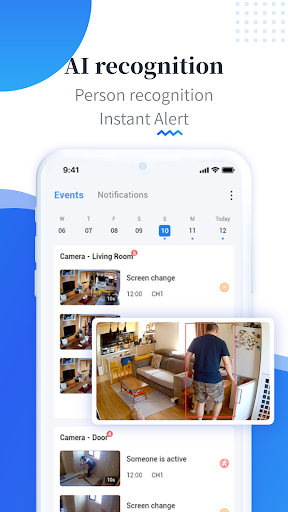
Below you find a compilation of case studies showcasing uses of EseeCloud, highlighting its versatility and effectiveness in various scenarios.
EseeCloud sits in a familiar lane: it’s a mobile and desktop-friendly surveillance app that pairs with compatible IP cameras and NVRs, then gives you the usual essentials – live view, playback, alerts, sharing, and remote access. But “usual” doesn’t mean “boring.” The interesting part is how people stitch those features into real workflows: keeping an eye on deliveries, managing a small shop, checking an elderly parent’s entryway, or supervising a remote site without hiring a night guard.
Below are hands-on, case studies built around what EseeCloud is designed to do—multi-camera viewing, QR/ID pairing, PTZ control (where supported), recording to SD card and/or cloud, and device sharing.
Quick Feature Snapshot
- Live preview + multi-camera monitoring: Watch one or multiple feeds in real time. (iOS App Store listing notes multi real-time preview.)
- QR scan pairing: Add devices quickly with QR/Cloud ID-style onboarding. (iOS App Store listing.)
- PTZ control (camera-dependent): Pan/tilt/zoom from the app for supported models. (iOS App Store listing; CMS manuals commonly cover PTZ.)
- Recording + backup: Capture clips, record, and back up footage. (iOS App Store listing.)
- Storage options: SD card and/or cloud storage depending on device/service plan. (EseeCloud “Getting Started” docs describe SD vs cloud modes.)
- Alerts/notifications: Motion/event notifications (commonly configured in FAQs.)
More: EseeCloud manuals index eseecloud.app.
Case Study 1: The “Package-Proof Porch”
Scenario: You are not trying to run a spy operation – you just want to know whether the delivery guy actually delivered, and you want a clean clip when something goes missing.
- Setup goal: Door/porch camera + motion alerts + quick clip export
- Why EseeCloud works here: Live preview, motion notifications, and in-app recording/backup features are core to the app experience.
Hands-on build
- Mount smarter: Put the camera high enough to see faces, low enough to see hands and packages.
- Add device fast: Use the QR scan workflow to pair quickly, then name it something obvious like “Front Door.”
- Choose storage intentionally:
- SD card = cheapest, but local to the device.
- Cloud = offsite retention (helpful if the camera is stolen).
- Alert tuning: Set motion sensitivity so you’re not getting pinged for every leaf.
- Create “evidence clips” on demand: Use capture/record/backup to export only what matters.
Pro tip: If your camera supports H.265, make sure your phone OS meets the app’s playback requirements. The App Store listing explicitly calls out H.265 playback support on iOS 11+.
Case Study 2: The “Two-Person Retail Shop”
Scenario: A small shop owner wants to peek in during off-hours, and a manager needs access too – without sharing the same login forever.
- Setup goal: Multi-camera live view + controlled sharing + alert hygiene
- Why EseeCloud works here: Multi real-time preview and device sharing workflows are common in EseeCloud ecosystem FAQs and guides.
Hands-on build
- Create a camera naming convention: “Register,” “Stockroom,” “Back Door.” Sounds basic, saves your sanity later.
- Use split views: If you’re managing multiple channels, use the multi-preview layout for quick scans (especially on tablets).
- Share access with guardrails: Use the app’s sharing flow to invite another user rather than passing around credentials.
- Notification strategy:
- Enable alerts on the “Back Door” camera only.
- Disable alerts on high-traffic areas like “Register” unless you’re investigating a pattern.
Pro tip: For after-hours incidents, export a short time window clip (not an hour-long file) so it’s easy to send to police/insurance.
Case Study 3: The “Weekend Cabin”
Scenario: Remote property. Weak internet. You mainly need “Is everything normal?” checks and a reliable way to look back at events if something goes sideways.
- Setup goal: Stable remote viewing + SD-first recording + occasional cloud snapshots
- Why EseeCloud works here: Documentation emphasizes different usage modes and storage choices (router-based remote viewing; SD vs cloud).
Hands-on build
- Prioritize SD recording: If bandwidth is weak, let the camera record locally and use remote viewing for spot-checks.
- Schedule your checks: Don’t watch a livestream for 30 minutes. Check in for 30 seconds, twice a day.
- Optimize alerting: Set alerts for “entry points only” to reduce false positives and data usage.
- Test playback before you leave town: Confirm you can actually pull yesterday’s footage remotely (not just live view).
Pro tip: SD cards aren’t immortal. If you see “card error,” check capacity and formatting requirements – some guides note constraints like capacity limits and FAT32 formatting.
Case Study 4: The “PTZ Nursery Cam”
Scenario: You want the flexibility of pan/tilt/zoom to check a room, but you don’t want 24/7 recording eating storage – or your attention.
- Setup goal: PTZ quick checks + short clips + limited notifications
- Why EseeCloud works here: PTZ control and video capture/recording/backup are called out in the iOS listing.
Hands-on build
- PTZ presets: If your model supports presets, set one for “crib,” one for “door,” one for “window.”
- Clip-first mentality: Record short clips when needed (10–30 seconds) instead of continuous recording.
- Night performance sanity check: Test night mode in the actual lighting you’ll use – IR can overexpose close objects.
- Notification restraint: Disable motion alerts inside busy rooms. Use them only when you expect the room to be empty.
Case Study 5: The “Construction Site After Hours”
Scenario: You don’t need cinematic footage. You need timestamped “what happened” proof when tools walk away.
- Setup goal: Wide coverage + alerts + offsite retention options
- Why EseeCloud works here: Remote viewing, recording, and cloud options are part of the standard EseeCloud workflow.
Hands-on build
- Place cameras for context: One wide shot (gate/entrance), one closer shot (tool storage), one “overview” shot (work area).
- Use cloud strategically: Offsite storage can matter if a camera gets damaged or stolen.
- Alert escalation:
- Night hours: alerts ON
- Day hours: alerts OFF (or tuned down)
- Export workflow: Practice exporting a clip before you need it- during an incident is the worst time to learn UI.
“Make It Work” Tips To Save You Support Tickets
- Build a “camera map” once: A note on your phone listing camera names + physical locations.
- Start with SD storage, then decide on cloud: SD proves the camera is reliable; cloud adds resilience and remote retention.
- Don’t skip permissions: If you’re missing alerts, check OS notification permissions and app push settings – this is a common troubleshooting path in EseeCloud-related FAQs.
- Update intentionally: App updates can improve stability and features; both app stores show frequent updates.
Privacy and Data: What to Check Before You Deploy
Any cloud-connected camera setup is a privacy decision as much as a tech decision. Two practical moves:
- Read the app’s privacy policy and compare it to your risk level: At minimum, understand what identifiers or usage data may be collected.
- Use platform privacy labels: Apple’s App Privacy section and Google Play’s Data Safety sections are quick “at-a-glance” summaries – helpful even if you still read the full policy.
FAQ: EseeCloud Use Cases People Ask About
Can I use EseeCloud for both home and business?
- Yes – EseeCloud is positioned as a general-purpose surveillance app with multi-device support and real-time monitoring, making it flexible across home and small business scenarios.
Is SD card recording enough?
- It can be – especially for stable networks and low-risk locations. Cloud storage becomes more valuable when you care about offsite retention.
Does EseeCloud support PTZ?
- The app supports PTZ control where the camera hardware supports it.
EseeCloud’s superpower isn’t one killer feature – it’s the way standard surveillance building blocks (live view, multi-camera preview, QR pairing, PTZ control, recording/backup, SD/cloud storage, and alerts) can be combined into workflows that feel custom-made. Whether you’re watching packages, running a shop, or keeping tabs on a remote property, the “best” setup is usually the one that’s boringly reliable: tuned alerts, clear camera naming, proven playback, and a storage plan that matches your risk.