
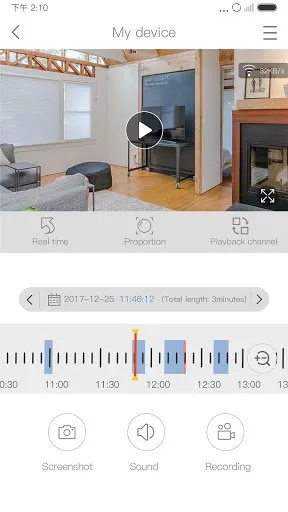
When it comes to setting up EseeCloud, the secret sauce is not just in how you place your cameras or configure the app – it is all about that underappreciated backbone: your network. With a bit of tweaking and some insider know-how, you can crank up your EseeCloud’s performance from meh to wow. Here is a bit of guidance from me on network settings, bandwidth considerations, and other optimizations to ensure EseeCloud runs smoother than a hot knife through butter in different environments.
1. Start with the Basics: Upgrade Your Router
If your router still remembers dial-up, it is time for an upgrade. Modern IP cameras and apps like EseeCloud crave bandwidth and stability, which older routers often fail to deliver. Invest in a dual-band router that supports at least 802.11ac (now branded as Wi-Fi 5) to give your network a fighting chance.
Quick Guide: Head to your local electronics store or favorite online marketplace, and snag a router that screams future-proof. Look for terms like MU-MIMO (Multi-User, Multiple Input, Multiple Output) which helps in managing multiple devices efficiently – perfect for a setup with multiple cameras.
2. Segment Your Network – Keep the Cameras on Their Turf
Think of your network as a busy highway. If every car – your laptop, your phone, your gaming console – is on the same lane, traffic jams happen. That is where network segmentation comes into play. By putting your IP cameras on a separate VLAN (Virtual Local Area Network), you free up resources on your main network, so your Netflix binge does not buffer every time your camera records a passing car.
Quick Guide: Log into your router’s admin interface, check the VLAN settings, and carve out a new VLAN for your cameras. It is like giving them a VIP lane on that busy highway.
3. Tune-Up Your Wi-Fi Signal
Weak Wi-Fi signals are the bane of good camera performance. If your EseeCloud feed keeps freezing, your Wi-Fi signal might be crying for help. Consider the placement of your router; walls and floors are great for privacy but terrible for signal strength. Maybe give that router a better spot in the house or look into Wi-Fi extenders or a mesh network system.
Quick Guide: Play around with router placement – sometimes, moving it just a few feet can blast away dead zones. Alternatively, mesh network nodes can be lifesavers in spreading Wi-Fi love throughout larger homes.
4. Dial in the Correct Bandwidth Allocation
EseeCloud’s video feeds can chew through your bandwidth like nobody’s business, especially if you are using higher quality settings. It is vital to ensure your network can handle the data without choking other applications. Bandwidth allocation, also known as QoS (Quality of Service), can prioritize traffic from your cameras so that they do not drop out just when you need them most.
Quick Guide: Dive back into that router admin panel and set up QoS rules to prioritize your IP cameras. This way, even during heavy use, your cameras will not skip a beat.
5. Use Wired Connections Where Possible
Wi-Fi is convenient, but nothing beats the reliability and speed of good old-fashioned Ethernet cables. For stationary cameras, particularly those critical for security (like at your front door or gate), consider running Ethernet cables. It is a weekend project that could pay off in vastly improved reliability.
Quick Guide: Measure the distance, grab some Ethernet cables, and maybe a drill. It is a bit of DIY, but think of the peace of mind you woll have with a stable connection.
6. Keep Your Firmware in Shape
Outdated firmware not only poses security risks but can also affect your network’s performance. Manufacturers regularly release updates to improve security and functionality. Keeping your router and cameras updated is crucial for maintaining optimal performance.
Quick Guide: Set a monthly reminder to check for firmware updates. It is a good practice to log into your devices’ admin areas and hit that update button if available.
7. Opt for the Cloud When It Makes Sense
Sometimes, the best way to manage your bandwidth is not to use it at all. Many modern IP cameras offer cloud recording options. By recording directly to the cloud, you can save local network resources for other tasks.
Quick Guide: Check your camera settings for cloud storage options. While it might come with a subscription fee, the convenience and efficiency might be well worth it.
Setting up EseeCloud is not just plug-and-play if you’re aiming for perfection. By putting a bit of effort into optimizing your network, you ensure that your EseeCloud setup is performing at its peak. So, tweak those settings, maybe bust out a few Ethernet cables, and give your IP cameras the fast lane they deserve.